Workspace Monitoring Tab
What You See
This section of the interface is divided into two main areas titled 'Workspace Center Location' and 'Workspace Dimension'. Each section has a series of input fields with numerical values. 'Workspace Center Location' has fields for X, Y, Z coordinates and Rx, Ry, Rz rotational angles, all set to specific values. There are two toggle switches at the top, one labeled 'Show Box' and another 'Enable'.
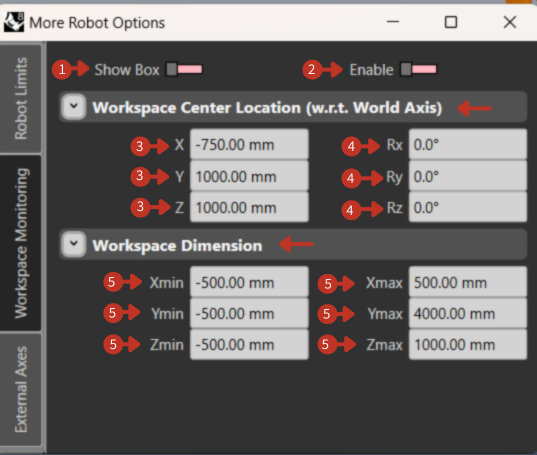
Workspace boundary configuration and monitoring controls
What It Means
This interface segment is dedicated to setting up the robot's workspace in relation to a fixed world axis, which is essential for precise robot operations.
Control Toggles
-
"Show Box" Toggle: This would typically activate a visual representation of the workspace boundary in the software, but it is currently turned off.
-
"Enable" Toggle: This control governs whether the specified workspace settings are currently being enforced by the software. Its off state suggests that the workspace limits are not active.
Workspace Center Location (w.r.t. World Axis)
Here, the X, Y, and Z values define the center point of the robot's workspace relative to a global coordinate system, indicating where the robot is centered for its operations.
"Rx, Ry, Rz" Orientation Fields: These values, all set to zero, suggest that the workspace is currently oriented in the same direction as the world axes without any tilt or rotation.
Workspace Dimension
This defines the permissible operating area for the robot. The "Xmin/Xmax," "Ymin/Ymax," and "Zmin/Zmax" values establish the boundaries within which the robot can move, essentially creating a virtual box of operation.