Collision Mesh Configuration
What You See
The Collision Mesh interface features two sets of controls labeled Accurate and Fast, each with Add, Clear, Bake buttons, and a Show toggle.
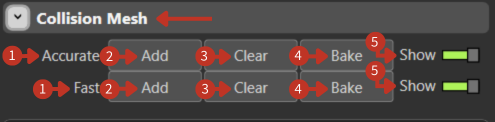
Collision Mesh controls for accurate and fast collision detection setup
What It Means
This interface section is designed for configuring collision meshes, which are used in simulations to detect and manage interactions between objects, like a robot and its environment.
Mesh Types
Accurate
"Accurate" refers to a high-fidelity mesh that closely matches the object's shape for precise collision detection.
Fast
"Fast" refers to a lower-fidelity, simplified mesh that requires less computational power and is used for quicker calculations.
Control Functions
-
"Add": Each "Add" button corresponds to its label, "Accurate" or "Fast," and is used to create or import a collision mesh of that type.
-
"Clear": These buttons remove their respective types of collision meshes from the simulation or workspace, to correct errors or to start a new configuration.
-
"Bake": "Baking" in 3D software applies certain calculations permanently to the mesh data. In this context, it finalizes the collision properties of the meshes, so they don't have to be recalculated in real-time during the simulation.
-
"Show" Toggles: The toggles allow users to see how the meshes will interact with other objects.
Best Practices
- Use Accurate mesh for final validation
- Use Fast mesh for quick iterative testing
- Always bake meshes before production runs
- Toggle visibility to verify mesh coverage