Jog Robot Interface
What You See
The interface titled "Jog Robot" includes a dropdown menu for "Jog Mode" with options such as "Axis Joints," "Cartesian (Tool)," "Cartesian (Base)," and "Cartesian (World)." There are sliders and numerical inputs for A1 through A6. Below these controls, there is a "Reset" button.
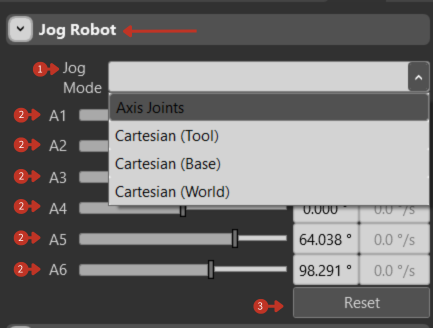
Manual robot positioning controls with multiple coordinate systems
What It Means
This segment of the software is dedicated to the manual adjustment of a robot's position, commonly referred to as "jogging." It is typically used during setup, maintenance, or manual operation of robotic equipment.
Jog Mode Selection
"Jog Mode" Dropdown: Allows the user to select the method of movement control for the robot.
Available Modes
-
"Axis Joints": Control individual robot joint angles directly
- Best for: Precise joint positioning
- Control: A1-A6 joint angles
-
"Cartesian (Tool)": Control the robot's end-effector in 3D space relative to the tool frame
- Best for: Tool-centric operations
- Control: X, Y, Z positions and rotations
-
"Cartesian (Base)": Control relative to the robot's base coordinate system
- Best for: Base-referenced movements
- Control: X, Y, Z in base coordinates
-
"Cartesian (World)": Control relative to the world coordinate system
- Best for: Absolute positioning
- Control: X, Y, Z in world coordinates
Control Inputs
Sliders and Numerical Inputs for A1-A6: These are used to fine-tune the robot's positions. The axes correspond to:
- Rotational joints (in "Axis Joints" mode)
- Linear coordinates (in "Cartesian" modes)
The numerical inputs provide a way to enter precise values for these positions or speeds.
Reset Function
"Reset" Button: Resets the adjustments made to the robot's position or speed, returning the robot to a predefined home or neutral position.
Jogging Best Practices
Safety First
- Start with slow jog speeds (10-20%)
- Clear the workspace before jogging
- Watch for cable interference
- Monitor joint limit indicators
- Have hand on emergency stop
Efficient Jogging
- Use Cartesian mode for linear movements
- Use Joint mode for large reorientations
- Switch between modes as needed
- Save positions for repeated use
- Use numerical input for precise positioning
Common Tasks
Tool Alignment
- Use Cartesian (Tool) mode
- Align tool with workpiece
- Fine-tune with small increments
Workspace Setup
- Use Cartesian (World) mode
- Move to workspace corners
- Verify reach and clearances
Home Position Setting
- Jog to desired position
- Use "Set Current" in Home Position
- Test return to home