Import Robot Cell/Workspace
What You See
Options labeled Import Robot Cell and Import Existing Workspace provide quick access to previously configured setups.
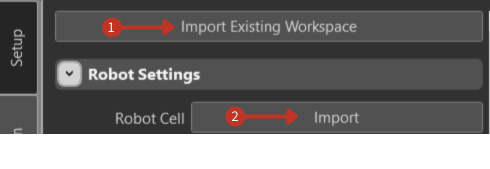
Import Robot Cell and Import Existing Workspace options for loading pre-configured setups
What It Means
These options are for bringing in previously set up environments.
-
"Importing a Robot Cell" would be used if you have a predefined setup, like a robot and its associated equipment, that you've saved from a previous session. It's similar to importing a template into a document – it brings in a set of predefined settings.
-
"Importing an Existing Workspace" is for when you have a complete project with all the settings, limits, and positions that you've worked on before. It's like opening a complete project file, so you don't have to start from scratch.
Import Options
Import Robot Cell
- Load predefined robot setups with equipment configurations
- Includes robot model, tools, and workspace geometry
- Ideal for standardized manufacturing cells
- Maintains consistent setup across projects
Import Existing Workspace
- Opens complete project files with all settings preserved
- Includes robot settings, limits, positions, and project data
- Continues work from previous sessions
- Preserves custom configurations and optimizations
How to Import
Accessing Import Functions
- Navigate to Setup > Robot Settings
- Locate the import options at the top of the interface
- Choose between Import Robot Cell or Import Existing Workspace
File Selection Process
- Click the appropriate import button
- Browse to locate your saved file
- Select the file you want to import
- Confirm the import operation
Supported File Types
- Robot cell configuration files
- Workspace project files
- CAD-based robot cell definitions
- Manufacturer-specific robot files
After Import
Verification Steps
- Review imported robot model and specifications
- Check workspace boundaries and safety zones
- Verify tool configurations and TCP settings
- Confirm coordinate system alignments
Configuration Updates
- Adjust settings specific to current project needs
- Update any changed physical configurations
- Modify safety parameters if needed
- Test robot movements and reachability
Next Steps
After successfully importing:
- Review Robot Configuration settings
- Configure Visibility Toggles
- Set up Positioning parameters
- Proceed to TCP Settings configuration