Boundary Area Interface
What You See
The interface section titled "Boundary Area" includes a series of buttons: "Add," "Remove," "Flip," "Flip All," and "Clear." Beneath these controls is a list with items "Surface 1," "Surface 2," and "Surface 3," indicating selectable areas within the boundary configuration. At the bottom, there is a toggle labeled "Only Show Selected."
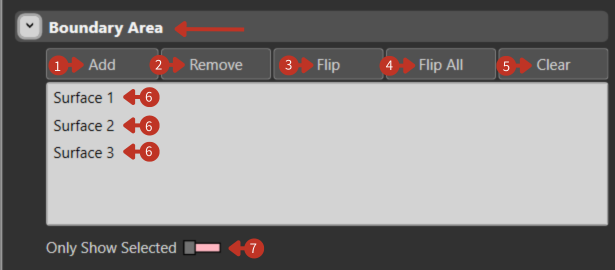
Boundary Area management for surface definition
What It Means
This part of the software interface is designed for managing and defining the boundary areas of a workpiece or material within a manufacturing or design software.
Control Functions
-
"Add": This button is used for creating a new boundary area within the software, which could delineate where operations will be conducted or materials will be applied.
-
"Remove": Allows the user to delete a selected boundary area, which may be necessary to correct mistakes or reconfigure the layout.
-
"Flip": This function is used to invert the selected surface within the boundary, which can be crucial for certain manufacturing processes where orientation is key.
-
"Flip All": Applies the flip action to all boundary areas listed, which is useful for quick, comprehensive adjustments.
-
"Clear": This button clears all configurations within the boundary area list, resetting the workspace to start anew.
Surface List
"Surface 1," "Surface 2," "Surface 3": These are the current boundary areas that have been defined and can be individually manipulated using the provided buttons.
Visualization
"Only Show Selected" Toggle: When activated, the interface would display only the boundary areas that have been selected, simplifying the view for the user to focus on specific sections.
Boundary Definition Tips
- Use boundaries to limit layup extent
- Define keep-out zones
- Create trimming boundaries
- Set up no-fly zones for collision avoidance