Layup Simulation Interface
What You See
The panel, titled "Simulate Layup," includes interactive elements like a "Frame Slider" and an "Animation Speed" adjuster. There are also options for "Loop Play" and a series of buttons: "Play," "Pause," "Refresh," "All Frame," "Analyze," and "Collision." Below these controls, a section unfolds detailing "Laminate 1, Total Plies: 4," listing individual plies with specific orientations.
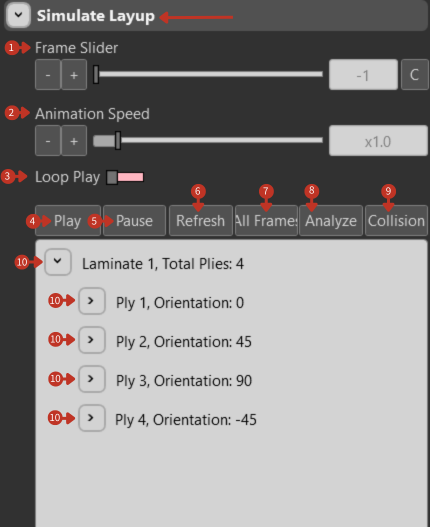
Layup simulation controls and ply configuration display
What It Means
This interface is part of a simulation module within a composite fabrication software system, providing tools for visualizing and analyzing the layup process of a laminate composite.
Playback Controls
-
"Frame Slider": Allows users to scroll through the simulation frame by frame, giving them the ability to closely inspect each step of the layup process.
-
"Animation Speed" Adjuster: Users can increase or decrease the speed of the simulation playback, enabling a rapid overview or a slow-motion analysis of the layup procedure.
-
"Loop Play" Toggle: When activated, the simulation will continuously repeat, which is useful for ongoing review without manual restart.
Action Buttons
-
"Play": Initiates the simulation playback
-
"Pause": Halts the simulation at the current frame
-
"Refresh": Resets the simulation or refreshes the current state
-
"All Frame": Selects all frames within the simulation for batch operations
-
"Analyze": Initiates a detailed analysis of the simulation data
-
"Collision": Activates collision checking during simulation
Laminate Information
"Laminate 1, Total Plies: 4": Provides a succinct overview of the laminate configuration, listing each ply along with its orientation angle. This helps users verify that the simulation includes all intended layers and that each is set at the correct orientation.
Simulation Features
Frame-by-Frame Analysis
- Step through individual movements
- Identify specific issues
- Verify tool positions
- Check material placement
Speed Control Options
- Slow (0.1x-0.5x): Detailed analysis
- Normal (1x): Real-time preview
- Fast (2x-5x): Quick overview
- Frame skip: Jump to specific points
Loop Playback Uses
- Continuous monitoring
- Presentation purposes
- Training demonstrations
- Process optimization
Analysis Functions
Standard Analysis
- Path verification
- Timing analysis
- Sequence validation
- Coverage checking
Collision Detection
- Robot self-collision
- Tool-to-part collision
- Robot-to-fixture collision
- Environmental interference
Viewing Options
- Multiple viewpoints
- Zoom and pan controls
- Ply-by-ply viewing
- Motion path overlay
- Speed visualization
- Force/pressure display
Optimization Tips
- Initial Review: Play at normal speed for overview
- Problem Areas: Use frame slider for detailed inspection
- Collision Zones: Slow playback near obstacles
- Quality Check: Verify each ply placement
- Timing: Note actual vs. estimated times