Robot Simulation Analysis Interface
What You See
The window titled "Simulation Analysis" presents a set of parameters and checks that can be applied during a robot simulation. At the top, there's a dropdown for "Frame Interpolation" set to "Medium (balanced)." Below, various "Robot Checks" are listed with toggles indicating their activation status, including "Axis Hard Limits," "Axis Soft Limits," "Axis Speed Limits," "Workspace Violations," and "Collisions." There are also sections for "Sudden TCP Rotation Detection" and "Large TCP Rotation Detection," each with specific tolerances for rotations about the TCP's X, Y, and Z axes. Two buttons, "Do Analysis" and "Abort," are available for managing the analysis process.
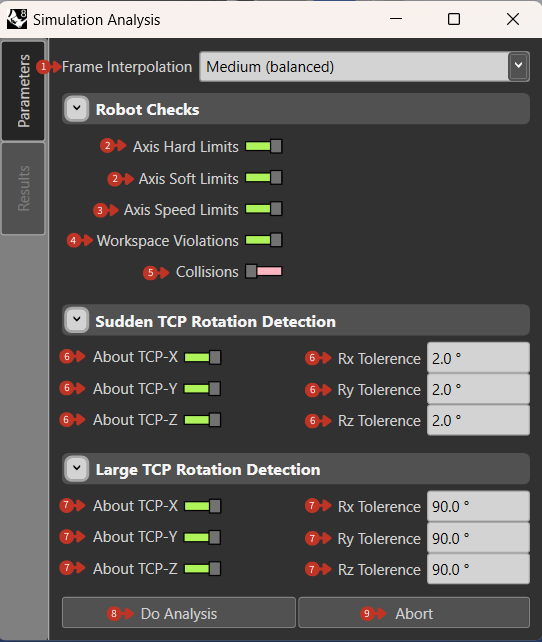
Comprehensive simulation analysis settings for robot operation validation
What It Means
This interface is a detailed control panel for setting up and conducting a thorough analysis of a robot's motion simulation to ensure that movements are within operational limits and tolerances.
Frame Interpolation
"Frame Interpolation" Dropdown: Allows the user to select the precision of frame calculation during the simulation.
Options typically include:
- Low (fast): Quick analysis, lower accuracy
- Medium (balanced): Good compromise
- High (accurate): Detailed analysis, slower
Robot Checks
-
"Axis Hard Limits": Verifies robot joints don't exceed physical limits
- Prevents mechanical damage
- Ensures valid configurations
-
"Axis Soft Limits": Checks against programmable boundaries
- User-defined safety margins
- Application-specific constraints
-
"Axis Speed Limits": Ensures movements don't exceed maximum allowed speeds
- Protects mechanical components
- Maintains process quality
-
"Workspace Violations": Detects movements outside defined working area
- Prevents collisions with environment
- Ensures reachability
-
"Collisions": Identifies potential contact between robot and objects
- Self-collision detection
- Environmental collision checking
Rotation Detection
Sudden TCP Rotation Detection
Monitors abrupt changes in orientation around the TCP's axes
- Tolerance fields: Maximum allowed deviation per axis
- Typical values: 5-10° for sudden changes
- Purpose: Detect programming errors or singularities
Large TCP Rotation Detection
Tracks significant rotational movements
- Set tolerances: Threshold for large rotations
- Typical values: 90-180° for large rotations
- Purpose: Identify wrist flips or reorientations
Control Buttons
-
"Do Analysis" Button: Commences the simulation analysis based on the set parameters and tolerances
-
"Abort" Button: Offers an immediate halt to the analysis process if needed
Analysis Workflow
-
Configure Checks
- Enable relevant checks
- Set appropriate tolerances
- Choose interpolation level
-
Run Analysis
- Click "Do Analysis"
- Monitor progress
- Review results
-
Interpret Results
- Address violations
- Adjust program as needed
- Re-analyze after changes
Common Issues Detected
Limit Violations
- Joint overtravel
- Speed exceedance
- Workspace boundary crossing
Motion Problems
- Singularities
- Sudden direction changes
- Excessive accelerations
Collision Risks
- Self-interference
- Tool collisions
- Environmental contact
Resolution Strategies
- For Limit Violations: Adjust waypoints or paths
- For Speed Issues: Reduce speeds or add intermediate points
- For Collisions: Modify approach angles or add clearance
- For Rotations: Reconfigure tool orientation or add transition moves