Mold Position Configuration
What You See
The interface section is labeled "Mold Position," containing elements for setting the reference point and alignment of a mold. It includes a "Pick" button for selecting a mold reference, a "Show" toggle highlighted in green indicating it is active, a dropdown menu for "Align w.r.t" set to "Base Axis," and input fields for the mold's position (X, Y, Z) and orientation (Rx, Ry, Rz), all currently at zero.
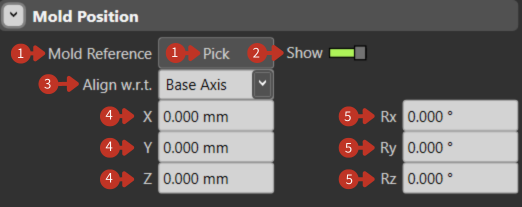
Mold positioning controls with reference alignment and coordinates
What It Means
This segment of the software is designed for precisely positioning and orienting a mold within the workspace of a manufacturing or simulation environment.
Mold Reference
"Mold Reference" and "Pick" Button: This function is for choosing the specific points on the mold that will serve as the reference for positioning and orientation within the software.
Visualization
"Show" Toggle: The engaged toggle suggests that the mold's position and orientation are currently being displayed within the software's visual interface, providing the user with immediate visual feedback.
Alignment Reference
"Align w.r.t": The dropdown allows the user to select the relative alignment of the mold. With "Base Axis" chosen, the mold's position and orientation will be aligned relative to the base coordinate system of the robot or workspace.
Position Coordinates
"X, Y, Z" Coordinates: These fields are intended for entering the mold's location in three-dimensional space. Values of zero indicate that the mold is positioned at the origin of the selected reference system.
Orientation Angles
"Rx, Ry, Rz" Orientation: These inputs define the rotational orientation of the mold about the base axes. The zeros suggest that the mold is currently aligned with the base axes with no tilt or rotation.
Positioning Best Practices
- Pick reference points that are easily identifiable
- Document mold positions for repeatability
- Use Show toggle to verify positioning
- Consider accessibility for robot operations
- Account for clearances around the mold